I've written several times in the past about the security company Secunia and the tool that they have created called PSI (Personal Software Inspector). Here is a link from bleepingcomputer.com that helps users how to use PSI. This is a tool that helps the average user to keep up to date with all those 3rd party applications like Adobe, Java, iTunes, Safari, etc. I am testing a newer version of PSI that is in Beta. This new version will have many automated updates to help the average user get through the forest of 3rd party applications. When this beta version is released, I will let you know.
The reason why this is so important is that cyber criminals are exploiting these 3rd party applications to install the malicious software that infects so many people's PCs. Be safe out there.
Showing posts with label Computer Tools. Show all posts
Showing posts with label Computer Tools. Show all posts
Sunday, November 21, 2010

Monday, July 19, 2010
Malwarebytes Rocks!
You may have had malicious software installed on your PC and you have done searching and found references to Malwarebytes Anti-malware tool. Everything you read about it is true. I recommend it to all my friends. If you don't already, click here to download it and install it. There is a free version but if you are finding that you browse to somewhat risky places on the Internet, then maybe you should purchase the paid for version which gives you better protection.
Below I've listed instructions on how to use the tool.
Below I've listed instructions on how to use the tool.
- After installing, double click on the Malwarebytes Anti-malware tool and you are
presented with the Malwarebytes dashboard. - Click on the Update tab (the third tab over). Click on the "Check for Updates" button to get the new signatures for MBAM. You need to do this step every time prior to running the tool.
- After the update is complete, then click on the Scanner tab (this tab is the first you will see when opening MBAM). Select the default scanning option (Perform quick scan) and then click on the Scan button. MBAM will now start scanning your computer for malware. This process can take quite a while, so I suggest you go and do something else and periodically check on the status of the scan. When MBAM is done scanning it will present you with a message box with an OK button. It will either tell you no malicious files found, or if it finds any malicious files, it will then allow you to view the results. Click the OK button.
- If infected files are found, you will now be back at the main Scanner screen. At this point you should click on the Show Results button. A screen displaying all the malware that the program found will be displayed.
- You should now click on the Remove Selected button to remove all the listed malware. MBAM will now delete all of the infected files and registry keys. When removing the
files, MBAM may require a reboot in order to remove some of them. If it displays a message stating that it needs to reboot, please allow it to do so. If the Quick Scan
option actually found any malicious software, I always recommend that after you have removed and rebooted if needed, then repeat these steps but select the Perform full scan option. For sure this process will take longer because you are scanning your entire PC.
Sunday, December 27, 2009
How To: Documentation for using Secunia's PSI
When I'm asked to clean up a machine that runs the Windows operating system, I normally install an application from Secunia called Personal Software Inspector (PSI). Below is the documentation that I give them on how to use PSI.
I have downloaded a program on your PC called Secunia Personal Software Inspector. It was downloaded from http://secunia.com/vulnerability_scanning/personal/ and it will help keep software on your PC up to date. This is important because vendors are always making security updates that will close vulnerabilities that hackers can use to take control of your PC. Many vendors have started to put an automated process similar to the Microsoft Automatic Updates in place because most people will never update their software on their own.
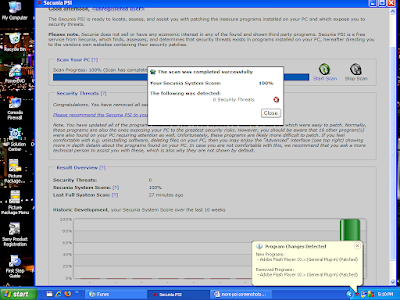
PSI will run when Windows starts up and initially will do a scan. Below is a screen shot of the PSI dashboard after scanning my PC. You will see in red the programs that are not current and in need of patching. In the “Solution” column, you can click on the blue icons and it will allow you to get the patch you need to be secure. Click all these icons to update your insecure software. After patching, PSI will rescan your system.
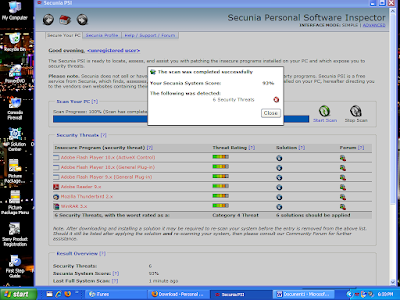
This is the screen showing your programs in need of patching. The Red bar in the graph shows you you need to take some action. Your goal is to have a Green bar that shows you are fully patched.
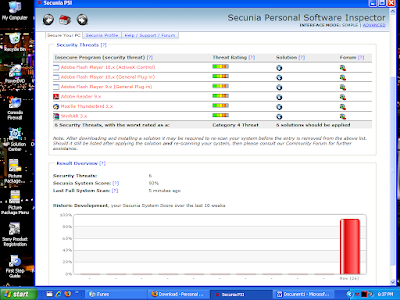
As you can see in the System Tray, if you hover your mouse over the PSI icon (the 3 red squiggly lines) it will tell you the status. Here it shows that you've just installed a more current version of a program.
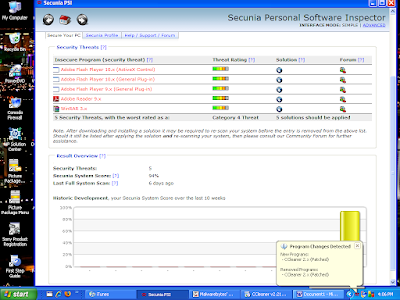
Here is an example after you've clicked on the “Solution” icon, and it gives you a dialog box that allows you to get the patch you need and you can then install it.
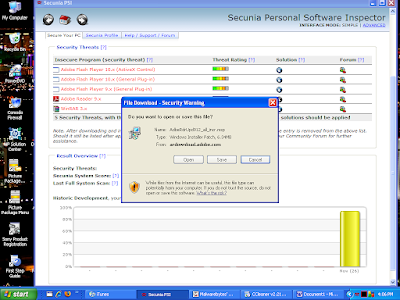
After completing your patching, your scan should then show you that you have no insecure applications. This is your goal. It is just as easy as that. If you have any questions, just get a hold of me and I will try and help.
I have downloaded a program on your PC called Secunia Personal Software Inspector. It was downloaded from http://secunia.com/vulnerability_scanning/personal/ and it will help keep software on your PC up to date. This is important because vendors are always making security updates that will close vulnerabilities that hackers can use to take control of your PC. Many vendors have started to put an automated process similar to the Microsoft Automatic Updates in place because most people will never update their software on their own.
PSI will run when Windows starts up and initially will do a scan. Below is a screen shot of the PSI dashboard after scanning my PC. You will see in red the programs that are not current and in need of patching. In the “Solution” column, you can click on the blue icons and it will allow you to get the patch you need to be secure. Click all these icons to update your insecure software. After patching, PSI will rescan your system.

This is the screen showing your programs in need of patching. The Red bar in the graph shows you you need to take some action. Your goal is to have a Green bar that shows you are fully patched.

As you can see in the System Tray, if you hover your mouse over the PSI icon (the 3 red squiggly lines) it will tell you the status. Here it shows that you've just installed a more current version of a program.

Here is an example after you've clicked on the “Solution” icon, and it gives you a dialog box that allows you to get the patch you need and you can then install it.

After completing your patching, your scan should then show you that you have no insecure applications. This is your goal. It is just as easy as that. If you have any questions, just get a hold of me and I will try and help.

Sunday, February 8, 2009
CCleaner A Good Tool for Your Toolbox
OK, I have a tool for you to check out if you are a Windows user. The tool is called CCleaner. Click here for additional information. I'm going to give you some things I like about it. First of all, it is a free tool. I recommend you download it use it on a regular scheduled basis.
It combines a system cleaner that cleans your PC of unused temporary files from your PC. On top of that, it also has a great registry cleaner too. The reason you want to run this is that it allows you to keep your Windows system running faster and it also frees up hard drive space. It also has a nice section that helps you clean up all those tasks that happen when your system starts up. Seems like every application that you install with the default setup will always start up at boot time. You don't need to do this and this can slow your PC when your system tray is full of all these started applications.
Hope you all had a great weekend and of course ROCK CHALK JAYHAWK!!
It combines a system cleaner that cleans your PC of unused temporary files from your PC. On top of that, it also has a great registry cleaner too. The reason you want to run this is that it allows you to keep your Windows system running faster and it also frees up hard drive space. It also has a nice section that helps you clean up all those tasks that happen when your system starts up. Seems like every application that you install with the default setup will always start up at boot time. You don't need to do this and this can slow your PC when your system tray is full of all these started applications.
Hope you all had a great weekend and of course ROCK CHALK JAYHAWK!!
Subscribe to:
Posts (Atom)