
Wednesday, July 14, 2010
How To Identify an E-mail is Malicious
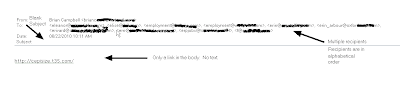
At some point, you have either been faced with or you will be faced with receiving an e-mail from someone you know personally that looks a bit odd. What are some of the things that you can look for to make that decision to click a link or not? This is an example of an e-mail that was actually delivered to a friends inbox and the link in the e-mail was a malicious download. Take a close look at the recipients list, you can see in this example that they are listed in alphabetical order. This is an indication that the attacker is sending e-mails sequentially to all contacts in a hijacked e-mail account. Most times, the SUBJECT line is blank. Another clue is there will be no text in the body of the e-mail, just a link. Remember, if you ever have a question about the validity of an e-mail, it is better to error on caution and just delete it.

Help My E-mail Account Has Been Hijacked!
Have you been told by someone you know that they think your e-mail account has been hacked? It seems like you see it more and more today where people get their e-mail accounts hijacked. E-mails are sent to everyone listed in the e-mail account's contact list that contains a link which is malicious. If any of your friends who open the e-mail from your hijacked e-mail account and they click on the link, more than likely their PC has just had some malicious payload installed on their PC. And so the cycle continues. So what do you do if your e-mail account has been hijacked? Here are some steps you can take to gain control back from the cybercriminal.
More than likely you logged into your personal e-mail account on a PC that had some sort of malicious software installed that was able to steal your login credentials for that account. If you only log into your account from your home PC, then your home PC has some sort of malicious software installed and it needs to be cleaned. Make sure you have an anti-virus product installed and that the virus signatures are current, then scan your PC and remove any malicious software that is found. If the scan comes back clean, I recommend downloading free version of Malwarebytes Anti-malware tool from http://malwarebytes.org/. Follow the instructions and remove any malicious software that is found.
Removing the malicious software is just the first step. You need to regain control of your e-mail account by doing the following steps.
1. Change the account password and make it a strong password.
2. Confirm that the "alternate e-mail address" is your other e-mail and not the criminal attacker's so that they won't be notified of the password change and other changes.
3. Change the answers to your security questions.
4. Change any other information that your e-mail account administrator would use to verify the account.
5. If all these efforts fail, open a new account, notify the e-mail administrator and your contacts, and close down the old account.
As always, the best protection from malicious software and other online attacks is to have a firewall and anti-virus software that is kept current. Also patching 3rd party applications like Adobe Reader/Flash, Java, as well as your Windows updates is critical to stay protected. Probably the best tool you have against is your "online behavior". Stay away from peer-to-peer sites where you can download "free" music and software, don't surf porn, and don't randomly click on links without checking into things. Your motto when online should be "trust no one". Combining all these will keep you protected against malicious software.
More than likely you logged into your personal e-mail account on a PC that had some sort of malicious software installed that was able to steal your login credentials for that account. If you only log into your account from your home PC, then your home PC has some sort of malicious software installed and it needs to be cleaned. Make sure you have an anti-virus product installed and that the virus signatures are current, then scan your PC and remove any malicious software that is found. If the scan comes back clean, I recommend downloading free version of Malwarebytes Anti-malware tool from http://malwarebytes.org/. Follow the instructions and remove any malicious software that is found.
Removing the malicious software is just the first step. You need to regain control of your e-mail account by doing the following steps.
1. Change the account password and make it a strong password.
2. Confirm that the "alternate e-mail address" is your other e-mail and not the criminal attacker's so that they won't be notified of the password change and other changes.
3. Change the answers to your security questions.
4. Change any other information that your e-mail account administrator would use to verify the account.
5. If all these efforts fail, open a new account, notify the e-mail administrator and your contacts, and close down the old account.
As always, the best protection from malicious software and other online attacks is to have a firewall and anti-virus software that is kept current. Also patching 3rd party applications like Adobe Reader/Flash, Java, as well as your Windows updates is critical to stay protected. Probably the best tool you have against is your "online behavior". Stay away from peer-to-peer sites where you can download "free" music and software, don't surf porn, and don't randomly click on links without checking into things. Your motto when online should be "trust no one". Combining all these will keep you protected against malicious software.
Thursday, April 22, 2010
Adobe Reader Setting to Change
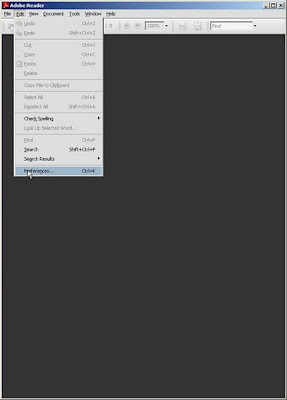
So you need to know what the criminal attackers are exploiting so you can defend against it. Adobe Reader/Acrobat and Adobe Flash are at the top of the list. Earlier I wrote about turning off Javascript in Adobe Reader in this post. I come to you with another setting to change. Pull up your Adobe Reader and then go to Edit>Preferences:
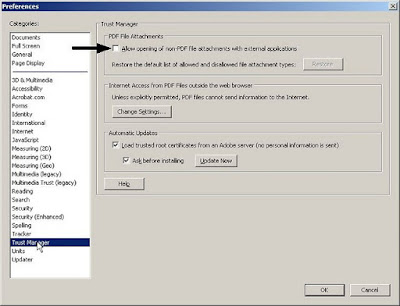
 Find the category Trust Manager and highlight it, then uncheck the box seen below in this image.
 Trying to stay secure is always a moving target. Setting these options as I have mentioned will help protect against current attacks going on now in the wild.
Stay safe and have a great weekend.


 Find the category Trust Manager and highlight it, then uncheck the box seen below in this image.
 Trying to stay secure is always a moving target. Setting these options as I have mentioned will help protect against current attacks going on now in the wild.
 Stay safe and have a great weekend.
Saturday, April 17, 2010
Defending Against ZeuS Trojan
If you are a small business, school districts, local governments, or local entities like community libraries, and you have someone who works for you who transacts business with your bank online, or possibly you use ACH, you had better listen up. Cybercriminals are looking for you and they want to steal you blind. If you have heard from your local financial institution warning you about ZeuS, you need to find yourself someone who can help you defend agasint this silent attack.
Brian Krebs has a great blog and has been writing about the folks behind the ZeuS kit that is stealing literally millions of dollars each year and it doesnt seem to be getting better. ZeuS has its sights on the smaller businesses who probably don't have the computer security staff to help them take steps to lower this risk.
I'm from the northeastern part of Kansas and can help you with a risk assessment to let you know if you are at risk to ZeuS. Contact me if you would like to talk. Have a great weekend and stay safe.
Brian Krebs has a great blog and has been writing about the folks behind the ZeuS kit that is stealing literally millions of dollars each year and it doesnt seem to be getting better. ZeuS has its sights on the smaller businesses who probably don't have the computer security staff to help them take steps to lower this risk.
I'm from the northeastern part of Kansas and can help you with a risk assessment to let you know if you are at risk to ZeuS. Contact me if you would like to talk. Have a great weekend and stay safe.
Sunday, February 28, 2010
Criminal Hackers Poison Search Results
So you ever hear news about a celebrity or a current news event, and you want to find out more information so you go do a Google search on the topic? Bad guys know this and will take advantage of tragedy to spread their malware. Check out this video to see how to keep yourself safe based on you inspecting the results you get back closely.
Saturday, January 30, 2010
Adobe Reader Settings
So you want an added layer of protection against the bad guys? Go now to your Adobe reader and open it up and go to HELP on the toolbar and then select Check for Updates... If there is an update, then do it!


After you get it updated, open the Adobe Reader application up again and on the toolbar go to Edit, then Preferences...

This will open another window where you need to look down at the left hand margin and select JavaScript, then uncheck the box Enable Acrobat JavaScript.

If you are like me, almost all will not be affected by having this option turned off. I am aware that the www.irs.gov has forms that do require you to have this enabled. Bad guys like to create malicious malformed PDF documents that are many times related to JavaScript. The good news is from this point on, when you update Adobe Reader, it will retain this setting. The only time you will ever need to change this setting is when you receive a PDF document who you absolutely trust the
person who is sending it to you.
After you get it updated, open the Adobe Reader application up again and on the toolbar go to Edit, then Preferences...
This will open another window where you need to look down at the left hand margin and select JavaScript, then uncheck the box Enable Acrobat JavaScript.
If you are like me, almost all will not be affected by having this option turned off. I am aware that the www.irs.gov has forms that do require you to have this enabled. Bad guys like to create malicious malformed PDF documents that are many times related to JavaScript. The good news is from this point on, when you update Adobe Reader, it will retain this setting. The only time you will ever need to change this setting is when you receive a PDF document who you absolutely trust the
person who is sending it to you.
Sunday, December 27, 2009
How To: Documentation for using Secunia's PSI
When I'm asked to clean up a machine that runs the Windows operating system, I normally install an application from Secunia called Personal Software Inspector (PSI). Below is the documentation that I give them on how to use PSI.
I have downloaded a program on your PC called Secunia Personal Software Inspector. It was downloaded from http://secunia.com/vulnerability_scanning/personal/ and it will help keep software on your PC up to date. This is important because vendors are always making security updates that will close vulnerabilities that hackers can use to take control of your PC. Many vendors have started to put an automated process similar to the Microsoft Automatic Updates in place because most people will never update their software on their own.
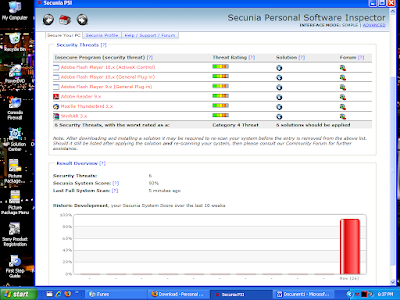
PSI will run when Windows starts up and initially will do a scan. Below is a screen shot of the PSI dashboard after scanning my PC. You will see in red the programs that are not current and in need of patching. In the “Solution” column, you can click on the blue icons and it will allow you to get the patch you need to be secure. Click all these icons to update your insecure software. After patching, PSI will rescan your system.
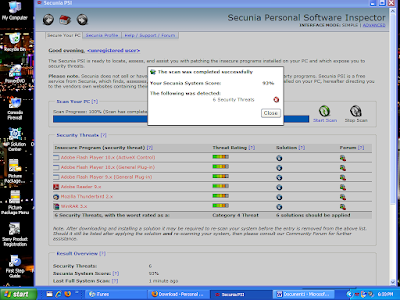
This is the screen showing your programs in need of patching. The Red bar in the graph shows you you need to take some action. Your goal is to have a Green bar that shows you are fully patched.
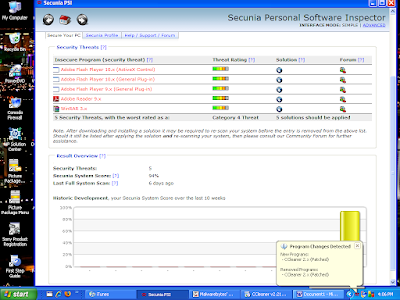
As you can see in the System Tray, if you hover your mouse over the PSI icon (the 3 red squiggly lines) it will tell you the status. Here it shows that you've just installed a more current version of a program.
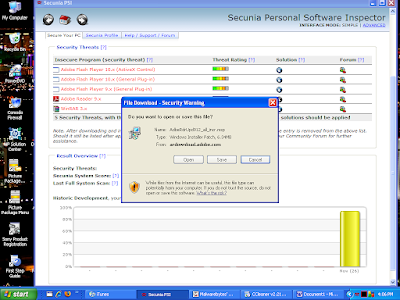
Here is an example after you've clicked on the “Solution” icon, and it gives you a dialog box that allows you to get the patch you need and you can then install it.
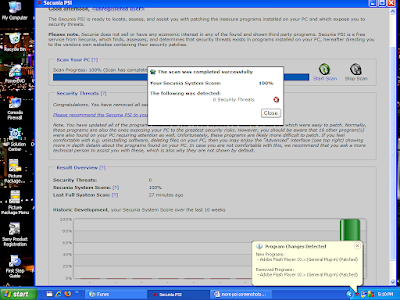
After completing your patching, your scan should then show you that you have no insecure applications. This is your goal. It is just as easy as that. If you have any questions, just get a hold of me and I will try and help.
I have downloaded a program on your PC called Secunia Personal Software Inspector. It was downloaded from http://secunia.com/vulnerability_scanning/personal/ and it will help keep software on your PC up to date. This is important because vendors are always making security updates that will close vulnerabilities that hackers can use to take control of your PC. Many vendors have started to put an automated process similar to the Microsoft Automatic Updates in place because most people will never update their software on their own.
PSI will run when Windows starts up and initially will do a scan. Below is a screen shot of the PSI dashboard after scanning my PC. You will see in red the programs that are not current and in need of patching. In the “Solution” column, you can click on the blue icons and it will allow you to get the patch you need to be secure. Click all these icons to update your insecure software. After patching, PSI will rescan your system.

This is the screen showing your programs in need of patching. The Red bar in the graph shows you you need to take some action. Your goal is to have a Green bar that shows you are fully patched.

As you can see in the System Tray, if you hover your mouse over the PSI icon (the 3 red squiggly lines) it will tell you the status. Here it shows that you've just installed a more current version of a program.

Here is an example after you've clicked on the “Solution” icon, and it gives you a dialog box that allows you to get the patch you need and you can then install it.

After completing your patching, your scan should then show you that you have no insecure applications. This is your goal. It is just as easy as that. If you have any questions, just get a hold of me and I will try and help.

Subscribe to:
Posts (Atom)